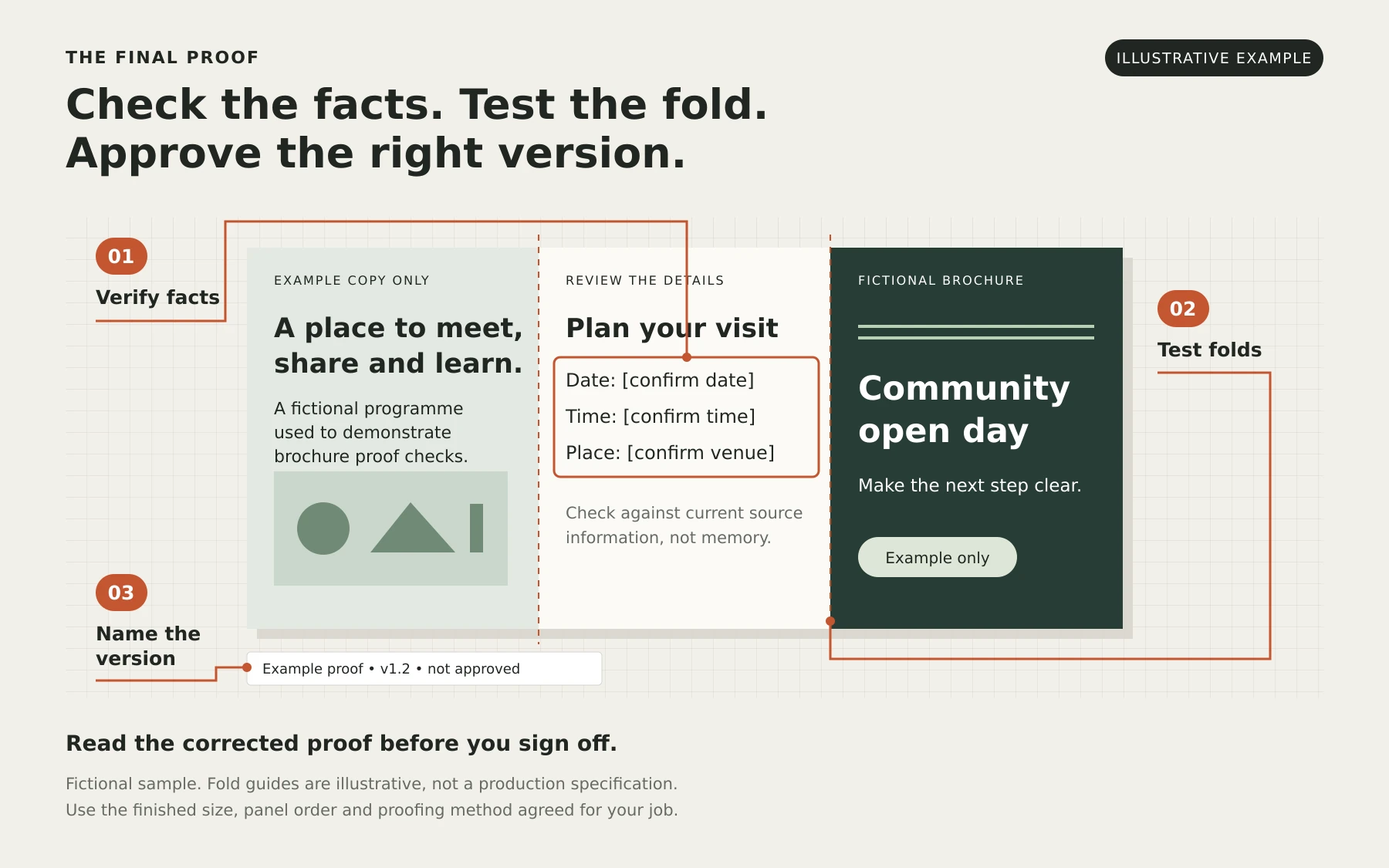
A brochure proof is your chance to check the content, layout and production details before printing begins. Review the correct file, read the facts carefully, check a finished-size mock-up and understand what the printer's proof can show. When corrections come back, review the revised proof before approving it.
Whether the brochure will sit on a Ballarat counter or go into a Melbourne meeting, check it as someone will use it. A large on-screen view can make small text look comfortable and disguise an awkward fold.
Confirm the filename or version and who is responsible for final approval. Give the people checking facts, brand and production the same file, then gather their comments in one place.
For organising source files and feedback earlier in the project, see our guide to preparing content for publication design. At proof stage, concentrate on the piece you are about to approve.
Make one pass just for accuracy. Check names, service descriptions, dates, prices and any conditions against current source information. Read contact numbers digit by digit and type printed website addresses into a browser.
Check headings, captions and small print as carefully as the main text. A familiar page can be easy to skim, so ask someone who has not been making the changes to read it too.
Check the printed dimensions rather than assuming a printout is at the right scale. Trim and fold a mock-up to the agreed format where practical, then follow the reading order from the cover to the back panel.
Look for text close to folds or edges, captions that are hard to read and information hidden when the piece is folded. Confirm which panel opens first and whether the next step is easy to find. Ask the designer or printer about anything that seems out of place.
An office printout is useful for layout and handling. It is not a colour reference for the production run, and it will not reproduce the final stock or finish.
Scan the code from a sample printed at the intended size. Check it on more than one phone if possible, then open the destination and complete the intended action. A successful scan is not enough if it leads to an old page or a form that does not work on mobile.
Keep the clear space around the code free of text, borders and artwork. Standard QR codes require a margin four modules wide on every side; a module is one of the small squares in the code. The designer should allow for that margin when sizing it. Recheck the code if its size, position or surrounding design changes.
Ask which proof you are reviewing and what it confirms. A screen PDF, a folded mock-up and a colour proof serve different purposes. Discuss any critical colour, stock or finish requirement with the printer before signing off.
For the technical PDF review, the designer or printer can use overprint preview to inspect how overlapping inks are represented. It is a simulation, not a guarantee of the final printed result. Use the proofing method and file requirements agreed for the particular job.
Confirm the finished size, stock, quantity, finishing and delivery details alongside the artwork. Resolve any mismatch before approval.
Check every requested change, then read the surrounding area. A longer sentence may move other text or affect how a panel reads. Review the whole piece once more, including links and QR codes, before giving approval.
Identify the exact proof version in the approval and keep that record. If the artwork or specification changes afterwards, ask for an updated proof and make the new approval clear before production proceeds.
For help with brochures, publications and other printed material, explore our graphic design services in Melbourne and Ballarat.